
Use multiple Claude Code accounts with CLAUDE_CONFIG_DIR
Claude Code keeps one login per configuration directory. Give each account its own directory and a shell alias, sign in once in each, and a personal plan and a work plan can stay signed in side by side, in different terminals, at the same time.
How CLAUDE_CONFIG_DIR works
CLAUDE_CONFIG_DIR tells Claude Code where to keep its configuration instead of the default ~/.claude. Settings, session history and plugins live there, and so does the login: each directory has its own claude.ai login or API key.
On macOS the login itself is stored in the Keychain, in an entry keyed to the directory. A session started with a different CLAUDE_CONFIG_DIR reads a different entry, so each account keeps its own login.
1. Add an alias for each extra account
Keep claude for your default account and add an alias for every other one. In zsh, the macOS default shell, that goes in ~/.zshrc; in bash, in ~/.bashrc.
# ~/.zshrc
alias claude-work='CLAUDE_CONFIG_DIR=$HOME/.claude-work claude'
Add one line per extra account, each with its own directory. Open a new terminal so the alias loads.
2. Sign in once per directory
Run claude-work. The first time, Claude Code walks you through login and setup for the new directory, so sign in with the account that belongs there. After that, every claude-work session uses that account.
To confirm which account a terminal is using, type /status in Claude Code. It shows the version, model, account and connectivity.
Good to know
- Settings live in each directory, so preferences in
~/.claude/settings.jsondon't follow you into~/.claude-work. Copy the file across if you want the same setup in both. - If you set
CLAUDE_CONFIG_DIRin a settings file instead of your shell, write an absolute path. Project and local settings ignore it. - Separate directories don't keep two Claude Console sign-ins made without an API key apart, because Claude Code stores that kind of sign-in outside the configuration directory.
3. See every account's limits at once
/usage only reports the account of the terminal you type it in. To see all of them together, notch-limits puts one ring per account around the MacBook notch. Hover it and it expands into each account's five-hour session and weekly windows, with the time each one resets. With two or more Claude Code accounts, the one with the most headroom gets a "Best now" tag.
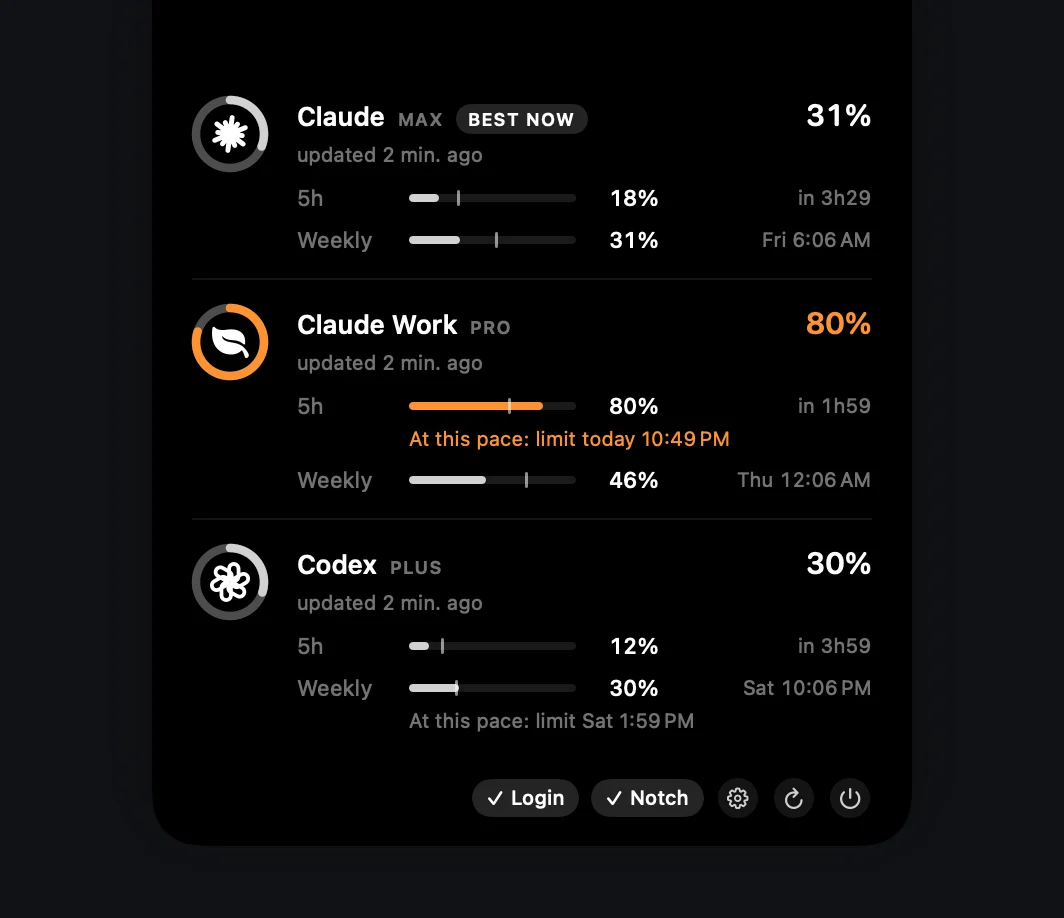
In most setups there is nothing to configure. At launch, and whenever you open Settings, notch-limits looks at the folders directly inside your home folder:
| Account | Found when | Name it gets |
|---|---|---|
| Your default Claude Code account | ~/.claude.json exists | Claude |
| Each extra Claude Code account | a folder named .claude plus a suffix, such as ~/.claude-work, contains its own .claude.json | Claude Work |
| Each Codex account | ~/.codex, or a folder such as ~/.codex-team, contains an auth.json | Codex, Codex Team |
So the ~/.claude-work folder from step 1 shows up as "Claude Work" the next time the app starts or you open Settings. Discovery only checks that these files exist: it doesn't open them, read your shell configuration or touch the Keychain. Automatic discovery and the Settings window need notch-limits 1.1 or later.
Manage accounts in Settings
Click the gear in the expanded notch, or in the menu bar panel on a Mac without a notch. Every account, found or configured, has a row where you can:
- Show or hide it. The last visible account can't be hidden.
- Rename it, for example from "Claude" to "Claude Personal". Press Return or click elsewhere to apply.
- Pick its icon.
- Move it up or down. The first half of the list sits left of the notch, the rest on the right.
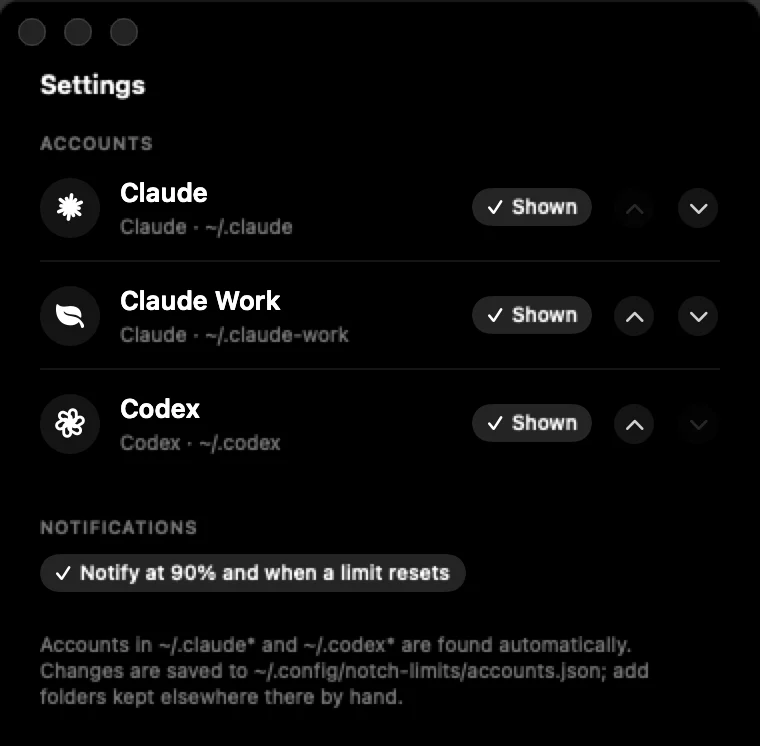
~/.claude, ~/.claude-work and ~/.codex.Changes apply immediately, with no restart and no network request, and are saved to ~/.config/notch-limits/accounts.json.
When you still need accounts.json
Only for config folders that aren't directly in your home folder, or aren't named .claude… or .codex…. Add an entry for each one by hand. The easiest start is to change anything in Settings first: it writes every account to the file, and you add yours to that list.
// ~/.config/notch-limits/accounts.json
[
  { "name": "Claude Personal",
    "provider": "claude", "path": "~/.claude" },
  { "name": "Claude Work", "icon": "briefcase.fill",
    "provider": "claude", "path": "~/.claude-work" },
  { "name": "Claude Client", "icon": "building.2.fill",
    "provider": "claude", "path": "~/clients/acme/claude" },
  { "name": "Codex",
    "provider": "codex", "path": "~/.codex" }
]
| Field | What it is |
|---|---|
name | The label in the expanded panel. |
provider | claude or codex. |
path | For Claude, the account's CLAUDE_CONFIG_DIR (default ~/.claude). For Codex, its CODEX_HOME (default ~/.codex). |
icon | claude, codex, or any SF Symbol name, such as leaf.fill or briefcase.fill. |
enabled | Optional. false hides the account. Settings writes it for you. |
- Use the same directory as the alias.
pathis the value your alias passes asCLAUDE_CONFIG_DIR. - The file wins. Once
accounts.jsonexists, it decides what is shown and in what order. Any found account that isn't in it is added hidden, so your setup stays as it was; turn it on in Settings. - Your original is kept. Before Settings first overwrites a file you wrote or edited by hand, it copies it to
accounts.json.bak. An existing backup is never replaced. - Apply hand edits by restarting the app or clicking the gear: every click re-reads the file and your home folder.
What it reads for each account
For each directory, notch-limits reads the usage snapshot Claude Code already keeps in that directory's .claude.json (for the default account, ~/.claude.json). It reads the login from the Keychain entry Claude Code created for that directory, through /usr/bin/security, so there is no permission prompt. It only calls the usage endpoint when the snapshot is more than 10 minutes old, and it never refreshes, rewrites or uploads tokens.
Codex works the same way with CODEX_HOME: every ~/.codex… folder with an auth.json is found on its own, and homes kept anywhere else go in accounts.json as codex entries.
Troubleshooting
- "Credential not found in Keychain". That directory has no login yet, or a hand-written
pathdoesn't match the alias. Run the alias once, sign in, and check the path. If it's an old folder you no longer use, hide it in Settings. - "Token expired — open the CLI to renew it". Access tokens are short-lived and notch-limits never refreshes them, so it doesn't race your CLI. Run that account's alias once and it comes back on the next refresh.
- An account is missing. Open Settings: if you already had an
accounts.json, a newly found account starts hidden there, so turn it on. If it isn't listed at all, check that the folder sits directly in your home folder, that its name starts with.claudeor.codex, and that it contains.claude.json(Claude Code) orauth.json(Codex). Anything else needs anaccounts.jsonentry. If that file isn't valid JSON, notch-limits ignores it and uses the accounts it finds.
Get notch-limits
Free, open source and native. No account of its own, no telemetry.
curl -fsSL https://raw.githubusercontent.com/matheusm/notch-limits/main/install.sh | bash
macOS 14+ · Apple Silicon & Intel · 3 MB download. The one-line install puts the app in ~/Applications with no Gatekeeper prompt. The DMG isn't notarized yet: on first launch, open System Settings → Privacy & Security and click Open Anyway.
Next: how to check Claude Code usage limits on a Mac →
Sources
- Claude Code docs: Log in with multiple accounts
- Claude Code docs: Credential management
- Claude Code docs: Environment variables (
CLAUDE_CONFIG_DIR) - Claude Code docs: Commands (
/status,/usage) - notch-limits README: Configuration
notch-limits is an unofficial community project, not affiliated with or endorsed by Anthropic or OpenAI. Claude Code changes often; the linked docs are the source of truth.