
How to check Claude Code usage limits on a Mac
On a Claude Pro, Max or Team plan, Claude Code runs against two clocks: a five-hour session and a weekly limit. This guide explains how each one resets, where to check them on a Mac, and how to keep them in view while you work.
The limits Claude Code counts against
Claude Code and Claude share the same limits: everything you do in either counts against the same windows. There are three kinds.
| Window | How it works | In notch-limits |
|---|---|---|
| Five-hour session | Opens with your first message and resets in full five hours later. | 5h, with a countdown to the reset |
| Weekly | Applies across all models. Resets at a fixed day and time assigned to your account, no matter when you started. | Weekly, with the reset day and time |
| Weekly, per model | A separate weekly limit for one model. Some plans have one for Fable. | The model's name, with the reset day and time |
The session and weekly windows are shared across every model, so switching models with /model won't get you past them. A model-specific limit is different: after one, a model outside that family keeps you working.
Team and Enterprise seats work the same way: each seat's allowance resets on a rolling five-hour window and a weekly window.
Check in Claude Code with /usage
Type /usage at the Claude Code prompt. On a subscription it shows your plan usage bars, next to activity stats and a breakdown of what counts against your limits. It runs right away, even while Claude is responding. /cost and /stats open the same screen.
- It covers one account.
/usagereports the account the current terminal is signed in to. If you use more than one, you check each one separately. - The usage endpoint is rate limited. When
/usagecan't fetch fresh numbers, it shows the last bars it loaded on this Mac in the past 60 minutes, with a "Showing last-known usage" note.
Check on claude.ai
Open Settings → Usage on claude.ai. Under Current session it shows how much of the five-hour window you've used and the time remaining, and it lists your next weekly reset.
Check Codex with /status
If you also use OpenAI Codex with a ChatGPT sign-in, type /status in the Codex CLI. Along with the session configuration, it shows your remaining usage limits, such as the five-hour and weekly windows. To keep them on screen, /statusline can add a rate-limits item to the Codex footer.
How Codex limits work on each plan, the web dashboard and what to do at the limit are in How to check Codex usage limits on a ChatGPT plan.
Keep every limit in view with notch-limits
Each check above is a command or a tab you have to remember, one account at a time. notch-limits is a small Mac app that keeps the same numbers around the MacBook notch.
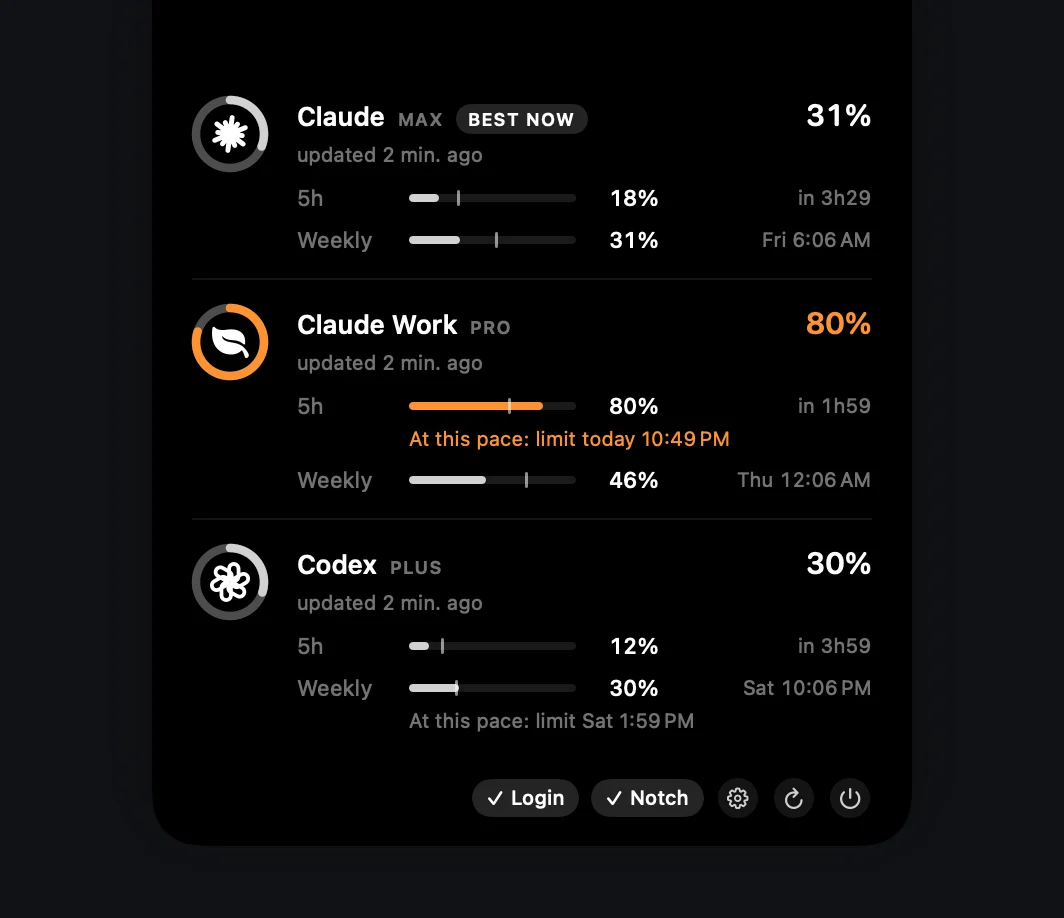
- One ring per account. Each ring fills to the highest of that account's windows, since that's the limit you'll hit first.
- Hover for detail. The notch expands into every window, with its percentage and reset time.
- Quiet until it matters. Rings stay gray, turn orange from 70% and red from 90%.
- Pace, not just percent. A faint tick on each bar marks where usage would be if spread evenly over the window. If you're on track to hit a limit before it resets, the panel says when: "At this pace: limit today 4:26 PM". It's a straight-line projection from the latest reading, shown once 15% of the window has passed.
- Optional notifications. A heads-up when a limit reaches 90%, and another when a limit you hit resets. Off by default; turn them on in Settings.
- Local-first. It reads the usage snapshot Claude Code already writes to
~/.claude.jsonand the rate limits Codex writes to its session logs. It only calls the usage endpoint, the same one/usageuses, when the newest data is more than 10 minutes old. Opening the panel never makes a request. - Clear about freshness. Each account shows how old its data is, and the label turns orange after 15 minutes.
- No notch, no problem. On a Mac without a notch, or in clamshell mode with an external display, it moves to the menu bar.
It doesn't replace /usage: the breakdown of what is using your plan stays in Claude Code. notch-limits answers the quicker question, which is how much is left and when it resets.
Get notch-limits
Free, open source and native. No account of its own, no telemetry.
curl -fsSL https://raw.githubusercontent.com/matheusm/notch-limits/main/install.sh | bash
macOS 14+ · Apple Silicon & Intel · 3 MB download. The one-line install puts the app in ~/Applications with no Gatekeeper prompt. The DMG isn't notarized yet: on first launch, open System Settings → Privacy & Security and click Open Anyway.
Next: what to do when you hit the Claude Code usage limit →
Sources
- Claude Help Center: How do usage and length limits work?
- Claude Help Center: Use Claude Code with your Pro, Max, or Ultra plan
- Claude Code docs: Commands
- Claude Code docs: Manage costs effectively
- Codex docs: Pricing (
/statusand remaining limits) - Codex docs: CLI slash commands (
/status,/statusline) - notch-limits README: How it works
notch-limits is an unofficial community project, not affiliated with or endorsed by Anthropic or OpenAI. Plans and limits change; the linked docs are the source of truth.